What Your Browser Knows - and Shares
Every time you open a browser tab, a quiet exchange of data begins. Websites read identifiers stored in your browser, ad networks track your movement across pages, and your browser may quietly sync your history to a cloud account. Most people never see any of it.
The settings that govern this behavior exist in every major browser - Chrome, Firefox, Safari, Edge - but they're buried under menus most users never visit. They're also set to defaults that often favor convenience and data collection over privacy. Adjusting them doesn't require technical know-how; it mostly requires knowing they exist.
As we cover in what you're sharing without knowing it, everyday browsing leaves a data trail that's larger than most people assume. The settings below are where you can start pulling it back.
Third-Party Cookie Controls
Third-party cookies are small files placed in your browser not by the site you're visiting, but by outside parties - typically advertisers - whose code is embedded on that page. They're the primary mechanism behind ads that seem to follow you across the web.
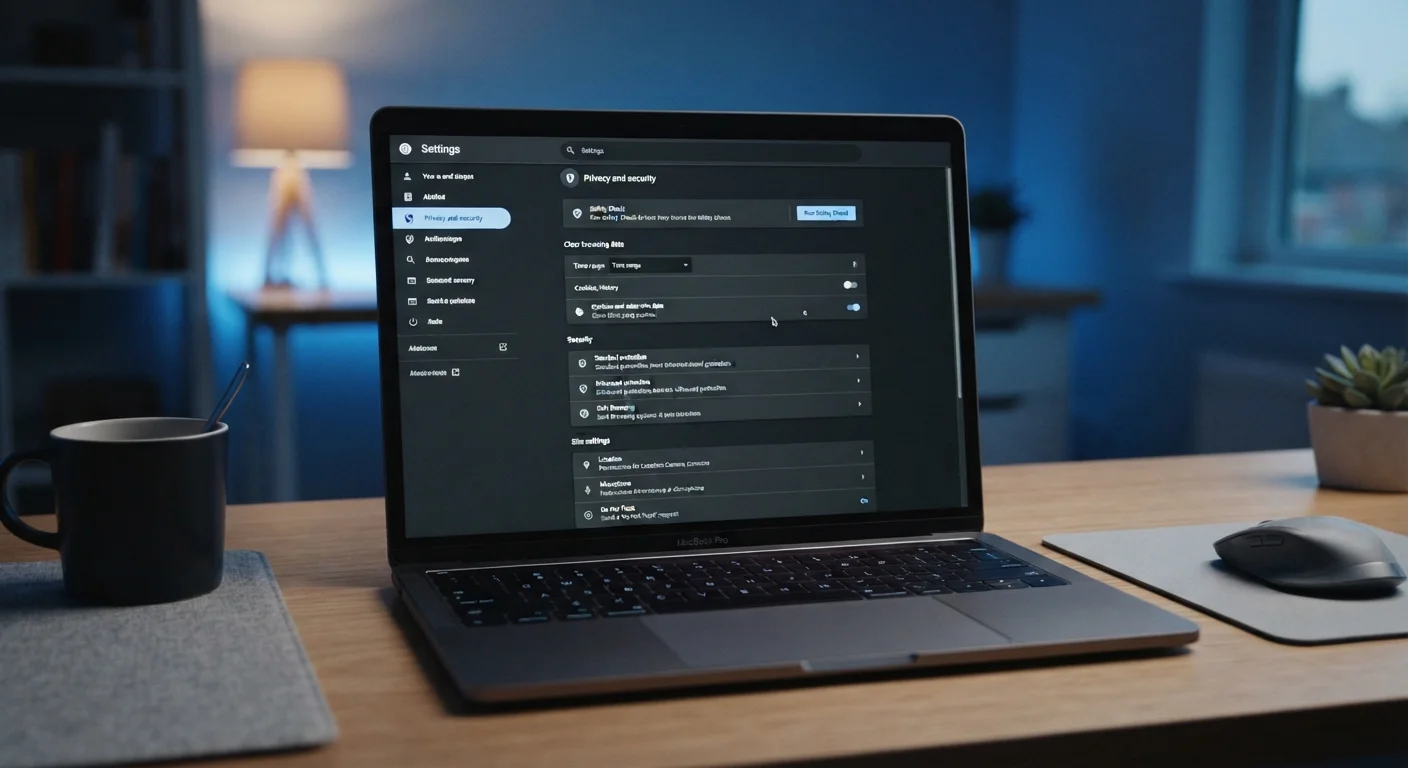
Most browsers now offer a setting to block third-party cookies specifically, without blocking the first-party cookies that keep you logged into sites. In Chrome, look under Settings > Privacy and Security > Cookies and other site data. Firefox and Safari block many third-party cookies by default. If yours doesn't, this is the single highest-impact privacy adjustment you can make.
Blocking third-party cookies cuts off the most common method advertisers use to track you across sites.
Site Permissions: Location, Camera, and Microphone
Browsers ask for permission before granting a site access to your location, camera, or microphone - but those permissions stay granted indefinitely once you click "Allow." Over time, a long list of sites accumulates access you may have forgotten about.
In most browsers, go to Settings > Privacy and Security > Site Settings (Chrome) or equivalent. Review each permission category and revoke access for any site where you don't actively need it. The location permission is especially worth auditing - many sites request it without a compelling reason.
Permissions granted once stay active indefinitely unless you manually review and revoke them.
Do Not Track and Enhanced Tracking Protection
"Do Not Track" is a signal your browser can send to websites requesting they not track your activity. The limitation: honoring it is voluntary, and most ad networks ignore it. It's worth enabling, but don't rely on it alone.
Firefox's Enhanced Tracking Protection (found under Settings > Privacy & Security) goes further - it actively blocks known trackers, fingerprinting scripts, and cryptominers. Choosing "Strict" mode blocks the most, though it occasionally causes issues on certain sites. Other browsers offer similar features under labels like "Tracking Prevention" (Edge) or built-in intelligent tracking prevention (Safari).
Enhanced tracking protection actively blocks known tracker scripts rather than just requesting good behavior.
Password Manager and Saved Credentials
Most browsers offer a built-in password manager, but not all users realize what's stored there - or that it may sync to the cloud by default. Go to your browser's password settings and review saved credentials. Remove entries for accounts you no longer use, and check whether saved passwords are tied to a cloud account that could be accessed from other devices.
Separately, consider whether you want your browser auto-filling payment card information. That convenience creates a shorter path for malicious sites or extensions to capture card data. Disabling auto-fill for payment info under Settings > Autofill adds a small layer of friction that may be worthwhile.
Saved browser passwords often sync to cloud accounts by default - a setting worth reviewing deliberately.
Extension Permissions Review
Browser extensions often request access to everything you do in your browser - every page you visit, every form you fill, sometimes even clipboard data. Extensions you installed years ago may still hold those permissions even if you rarely use them.
Navigate to your browser's extensions manager and click into each installed extension to see what it has access to. Remove any you don't recognize or no longer use. For the ones you keep, check whether permissions can be restricted to specific sites rather than all sites. Browser extensions carry real privacy trade-offs that are easy to miss at install time.
Extensions you installed years ago may still hold broad permissions to read everything you do in your browser.
DNS Over HTTPS
Every time you type a web address, your browser sends a Domain Name System (DNS) query to translate that address into an IP address. By default, this query is sent unencrypted - meaning your internet service provider, and anyone else on your network, can see which domains you're looking up even if the pages themselves are encrypted.
DNS over HTTPS (DoH) encrypts those lookups. In Chrome, find it under Settings > Privacy and Security > Use Secure DNS. Firefox has had it enabled by default for US users for some time. Enabling this setting is low-effort and meaningfully reduces one overlooked exposure in standard browsing.
Without DNS over HTTPS, your ISP can see every domain you look up, even on encrypted sites.
Make the Settings Work for You
None of these adjustments will make you invisible online, and some trade-offs - like breaking auto-fill or causing occasional login prompts - are worth knowing about in advance. But taken together, they reflect a more deliberate posture toward who has access to your browsing behavior.
Start With a Settings Audit, Not a Teardown
You don't need to lock down every setting at once. Start by reviewing site permissions and third-party cookie controls - these two changes deliver the most impact for the least disruption. Then work through the remaining settings one at a time, testing your normal browsing workflow as you go. Most adjustments are easily reversible if something breaks.
If you use browser sync to carry your settings across devices, double-check what's actually included in that sync. Passwords, history, and cookies can all travel between devices - which is convenient, but worth understanding. See how to sync apps without creating a privacy mess for a deeper look at managing that trade-off.
It's also worth knowing what these settings don't do. Browser privacy controls don't hide your activity from your internet provider, your employer's network, or the websites you actually log into. For a clear breakdown of what private browsing mode actually covers, see VPN vs. private browsing mode.