Why App Permissions Matter More Than Most People Realize
Every time you install an app, it may ask for access to parts of your phone that have nothing to do with the app's core job. A flashlight app that wants your contacts. A recipe app that needs your microphone. These requests are not always sinister - but they are rarely explained clearly, and tapping Allow without thinking can gradually hand over a lot of personal data.
Understanding what each permission actually does is the first step to making smarter choices. As covered in evaluating a new app before you download it, permissions are one of the most reliable signals of whether an app deserves your trust.
| Permissions controlled by iOS | 20+ distinct permission categories (Apple Developer Documentation) |
| Android permissions model introduced | Runtime prompts since Android 6.0 (2015) (Android Developer Documentation) |
| Permission categories most requested by apps | Location, Camera, Microphone, Contacts, Storage (Commonly documented across major app stores) |
| Option to grant limited location access | Available on iOS 14+ and Android 12+ (Apple and Google platform release notes) |
| Ability to revoke permissions after granting | Yes - in device Settings on both iOS and Android (Apple and Google support documentation) |
A Plain-English Guide to Common App Permissions
Here is what the most frequently requested permissions actually mean - and the legitimate reasons an app might need them.
Location
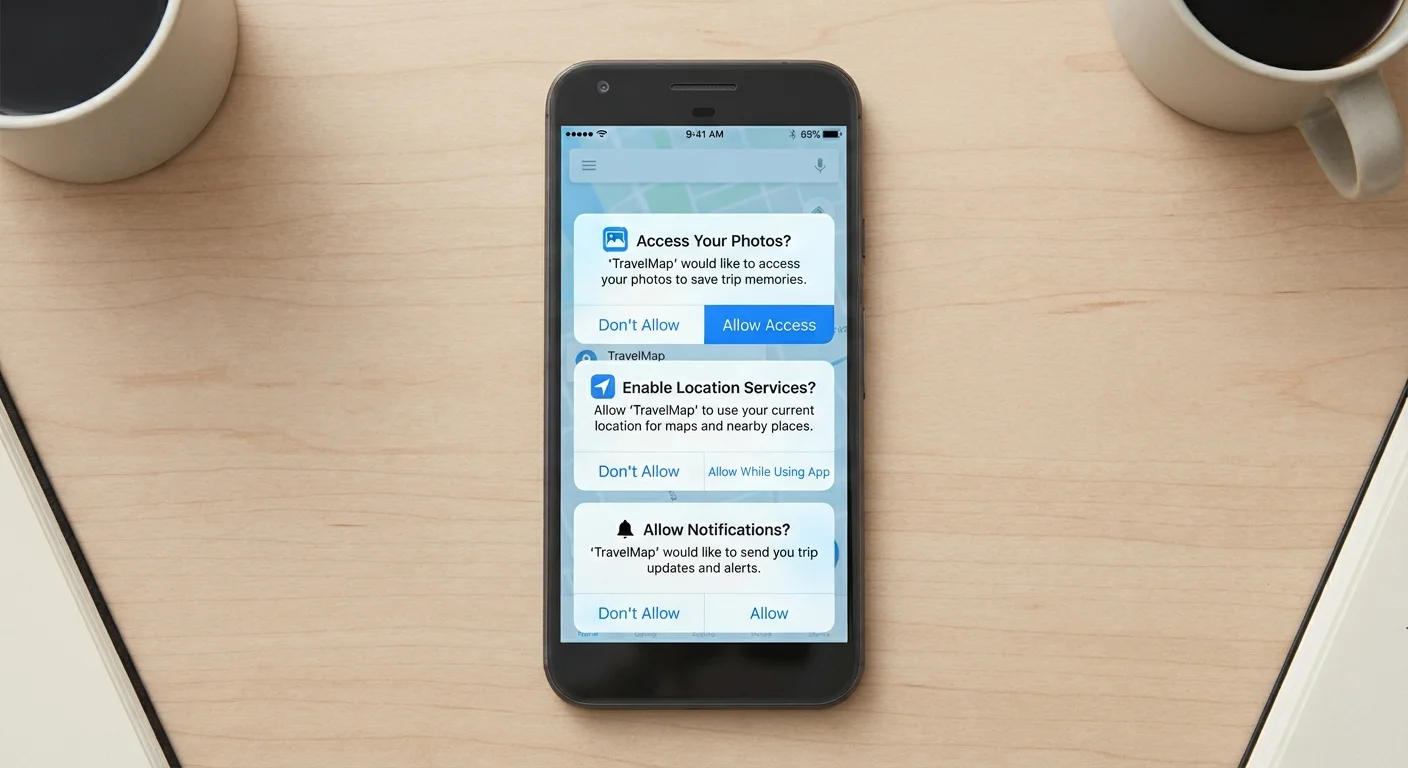
Apps can request precise location (your GPS coordinates) or approximate location (a general area). Maps and navigation apps genuinely need precise location. Weather apps typically only need approximate. Watch for apps that request location access in the background - that means they can track where you are even when the app is closed. Grant background location only when you have a clear reason to trust the app needs it continuously.
Camera
Camera access lets an app take photos or record video through your device's lens. Video calling, QR code scanning, and document scanning apps have clear reasons to need this. An app that has no visual function but requests camera access warrants scrutiny.
Microphone
Microphone access allows an app to record audio. Voice assistants, transcription tools, and video calling apps have obvious need for it. If a utility or game requests microphone access and no audio feature is evident, that is worth pausing over.
Contacts
This grants the app access to every name, number, and email address stored on your phone. Messaging and social apps use this to help you find people you know. However, contacts data can also be used to build marketing profiles. Consider whether the app's core function genuinely requires your full address book. For more on how data like this is used behind the scenes, see why free apps are never entirely free.
Storage / Photos & Media
Storage or media access lets apps read or write files on your device. Photo editors, cloud backup tools, and file managers need this. On newer versions of Android and iOS, apps can be limited to accessing only specific photos rather than your full library - use that option when available.
Notifications
This permission allows an app to send you alerts. It does not expose personal data directly, but excessive notifications are a common way apps keep you engaged beyond what is useful. Granting notification access selectively reduces distraction and helps you avoid app overload.
Bluetooth & Nearby Devices
Apps use Bluetooth to communicate with accessories like headphones or fitness trackers. Some apps also use Bluetooth signals for location tracking without GPS. Be thoughtful about which apps you allow to scan for nearby devices.
App Permission
A system-level access request that an app makes to use a specific feature or data on your device, such as your camera, location, or contacts. You must grant or deny each permission, usually when the app is first opened.
Runtime Permission
A permission that an app requests at the moment it needs that capability - for example, asking to access your microphone only when you start a voice recording. Modern Android and iOS systems use this model.
Precise Location
A permission that allows an app to read your GPS coordinates within a few meters. Distinct from approximate location, which reveals only a general area.
Background Access
When an app can use a permission - such as location or microphone - even when you are not actively using it. Background access is often optional and can be restricted in device settings.
Data Minimization
A privacy principle recommending that apps collect only the data strictly necessary for their stated function. Granting fewer permissions is a practical way to apply this principle.
Contacts Permission
Access to the list of names, phone numbers, and email addresses stored in your phone's address book. Apps that sync with friends or send invitations commonly request this.
How to Review and Limit Permissions You've Already Granted
Both iOS and Android let you audit and revoke permissions at any time through your device's Settings app. On iOS, go to Settings → Privacy & Security to see every permission category and which apps have access. On Android, navigate to Settings → Privacy → Permission Manager for the same view.
You Can Change Permissions Any Time
Granting a permission when you first install an app is not permanent. On both iOS and Android, you can open your device's Settings, find the app, and toggle individual permissions on or off at any time. Revoking a permission may limit some app features, but it will not delete the app or your account.
A practical habit: after installing a new app, give it the minimum permissions it asks for initially. Use the app for a week. If a feature you actually want requires a permission you withheld, you can grant it then - with a clearer understanding of why it is needed. This approach, sometimes called data minimization in privacy guidance, keeps your exposure low without sacrificing usefulness.
If you regularly sync apps across multiple devices, permissions can compound quickly. Syncing your apps across devices without creating a privacy mess walks through how to keep that process under control.
This article is for general informational purposes only and does not constitute legal, security, or technical advice. Consult your device manufacturer's support documentation or a qualified professional for guidance specific to your situation.