Why Your Router Deserves More Attention
Most people set up their router once and never return to its settings. That's understandable - it works, so it feels finished. But your router is the single point through which every device in your home connects to the internet: your phone, laptop, smart TV, security camera, and anything else on your network. A misconfigured or neglected router is an open invitation.
The risks are real but not dramatic. Attackers exploiting home routers are typically opportunistic - they look for easy targets, not specific households. The good news is that a small amount of deliberate setup raises your security well above the threshold most casual threats bother with. For a broader look at what online security means day-to-day, see what online security actually means for everyday life.
Default Credentials Are Publicly Known
Router manufacturers ship devices with the same default usernames and passwords - and these are indexed in publicly available databases anyone can search. If you have never changed your router's admin login, assume it is one of the easiest networks on your street to access. Change it before doing anything else in this guide.
This guide covers the foundational steps. None of them require technical expertise - only access to your router's settings and about 30 minutes.
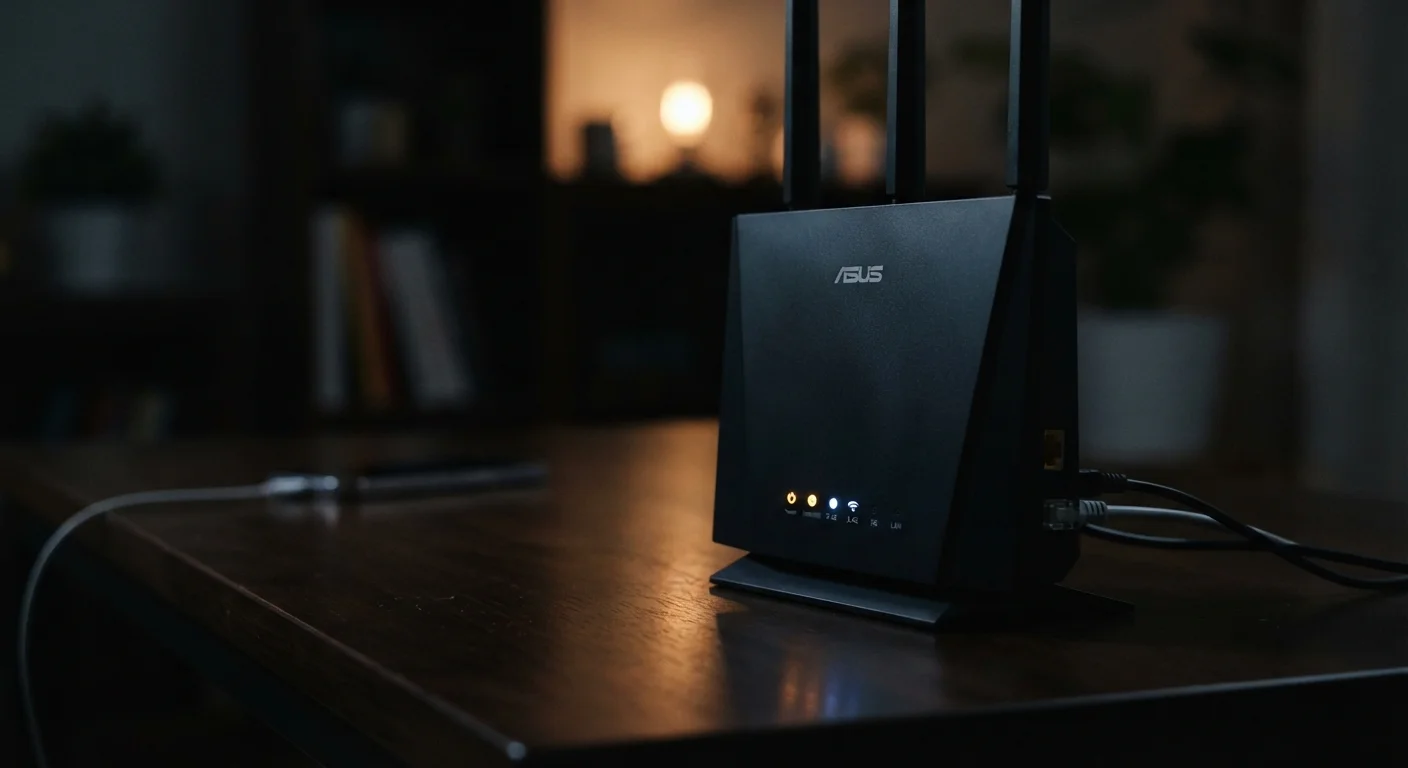
Router admin panel
The browser-based interface used to change passwords, update firmware, and configure network settings.
A laptop or desktop computer
More reliable for navigating router settings than a phone - some admin panels render poorly on small screens.
Pen and paper
For recording new credentials offline so you are not locked out if you forget them.
Router manual or manufacturer support page
Needed to locate the default admin address (usually 192.168.1.1 or 192.168.0.1) and firmware update instructions.
Before you begin, make sure you have what you need:
What you will need
Step-by-Step: Securing Your Home Network
Name Your Network Carefully
Avoid using your name, address, or router model in your Wi-Fi network name (SSID). Broadcasting your router model makes it easier for someone to look up its known vulnerabilities. A generic or unrelated name gives away less information.
Log into your router's admin panel
Open a browser on a device connected to your home network and type your router's admin address into the address bar - commonly 192.168.1.1 or 192.168.0.1. If neither works, check the label on the back of your router or search your router model name plus "admin address." Log in with the current credentials.
Change the admin username and password
Navigate to the admin or system settings section and replace both the username and password with something unique. Use a password of at least 12 characters that mixes letters, numbers, and symbols. This credential protects your router's control panel - it is separate from your Wi-Fi password.
Set your Wi-Fi to WPA3 or WPA2 encryption
Find the wireless security settings in your admin panel. Set the encryption protocol to WPA3 if your router supports it, or WPA2 as a minimum. Avoid WEP or WPA (version 1) - these are outdated and can be cracked with basic tools. If you change this setting, all devices will need to reconnect.
Update the router firmware
Firmware is the software that runs your router. Manufacturers release updates to patch known security vulnerabilities. In your admin panel, look for a section labeled Firmware Update, Software Update, or similar. Download and install any available update. Some routers support automatic updates - enable that option if it exists.
Create a separate guest network for smart devices
Most modern routers allow you to create a guest network - a separate Wi-Fi network that cannot directly communicate with devices on your main network. Put smart TVs, thermostats, cameras, and other IoT (Internet of Things) devices on this network. If any of those devices are compromised, they cannot be used as a path to your laptop or phone.
Disable remote management
Remote management allows your router to be accessed from outside your home network via the internet. Unless you have a specific reason to use this feature, turn it off. Look for a setting called Remote Access, Remote Management, or WAN Access in your admin panel and ensure it is disabled.
Review connected devices
Most routers include a section showing every device currently connected to your network. Review this list and look for anything unfamiliar. Unknown devices could be neighbors who know your Wi-Fi password or, less commonly, an indicator of unauthorized access. If you see something unexpected, change your Wi-Fi password and reconnect only your own devices.
Once you have completed these steps, make a habit of returning to your router settings every few months to check for firmware updates and review connected devices. The same discipline applies to smart home gear - our guide on keeping a smart home running well over time covers the ongoing maintenance side.
What These Steps Actually Protect Against
Changing default credentials stops the most basic automated attacks, which simply try manufacturer defaults against any router they can reach. Enabling WPA2 or WPA3 encryption protects your Wi-Fi traffic from being read by anyone within range of your signal. Segmenting smart devices onto a guest network limits what an attacker can reach if a lower-security device is ever compromised. And disabling remote management removes an access vector that most home users simply do not need.
Don't Lock Yourself Out
Before changing admin credentials or network settings, write down your new password and store it somewhere offline and accessible. If you forget the admin password, recovering access typically requires a full factory reset, which erases all your custom settings.
These steps won't make your network impenetrable - nothing can. But they address the most commonly exploited weaknesses in home networks without requiring specialized knowledge. For context on how home network risks compare to public networks, see why public Wi-Fi carries its own risks.
If you ever suspect your accounts have been affected by a network compromise, fast action matters. Our guide on what to do immediately after an account is hacked walks through recovery in order. For a comprehensive reference covering passwords, privacy, and more, see Internet Safety From End to End.